GitHub integration
With the Apify integration for GitHub, you can create an Actor from a public or private repository, rebuild it automatically on every push, and trigger workflows in your repo when an Actor run fails, succeeds, or times out. To run automated tests and multi-branch builds with GitHub Actions, see Continuous integration for Actors.
This integration uses a third-party service. If you find outdated content, please submit an issue on GitHub.
Prerequisites
To use the GitHub integration, you need:
- An Apify account.
- A GitHub account with access to the repository you want to link.
Create an Actor from a GitHub repository
Follow these steps to build a new Actor from code hosted on GitHub.
Step 1: Open the new Actor page
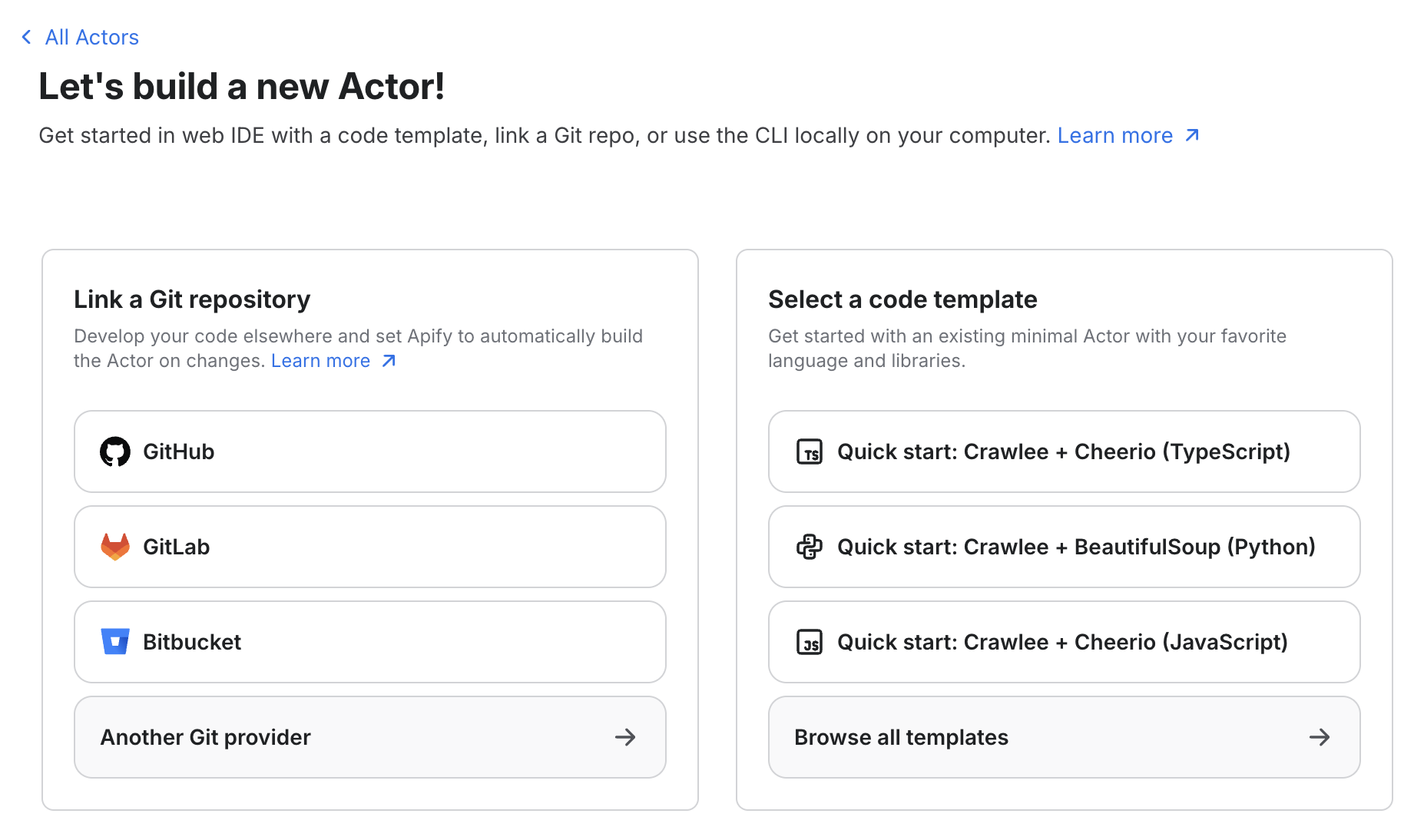
In Apify Console, go to Actors and click Develop new.
Step 2: Connect your GitHub account
Under Link a Git repository, click GitHub. Follow the prompts on github.com to authorize Apify. You can grant access to your personal account, an organization, or specific repositories.
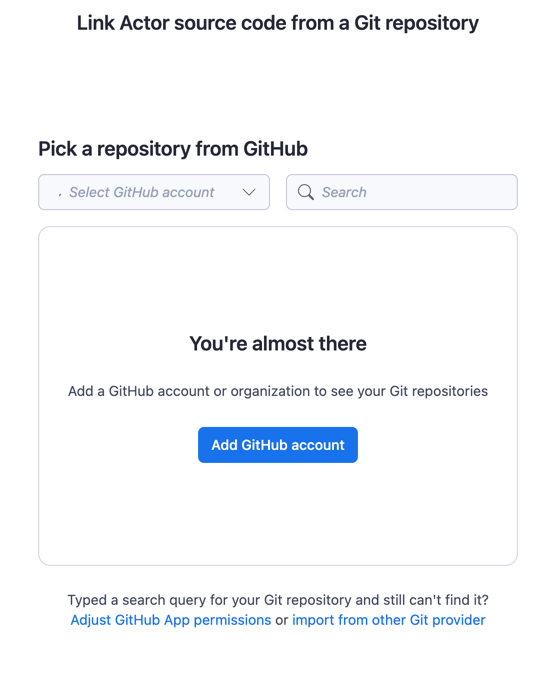
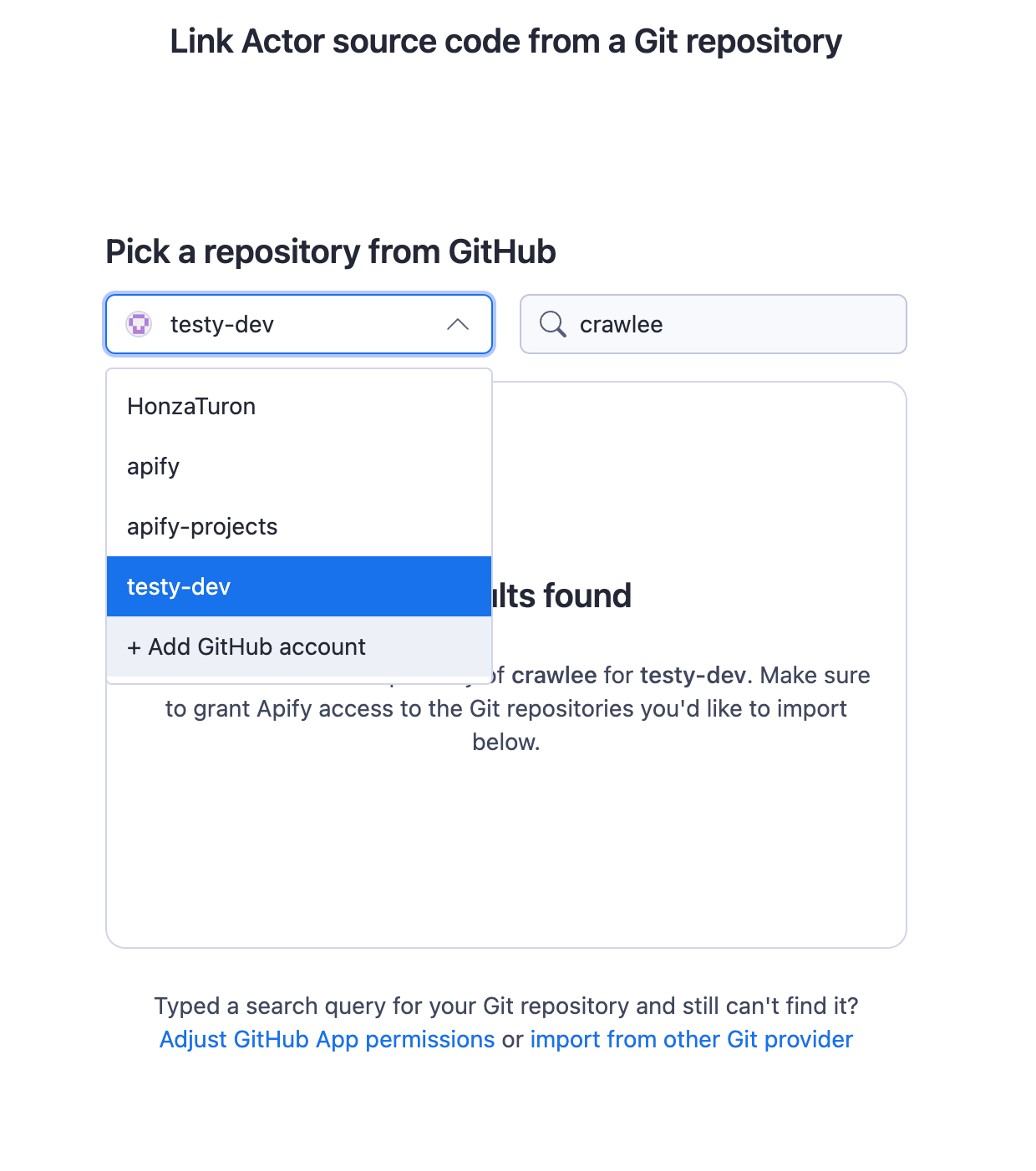
To switch between authorized users and organizations, use the account dropdown.
Step 3: Select a repository
Pick the repository you want to link. If you don't see it, use the Search field to find it by name.
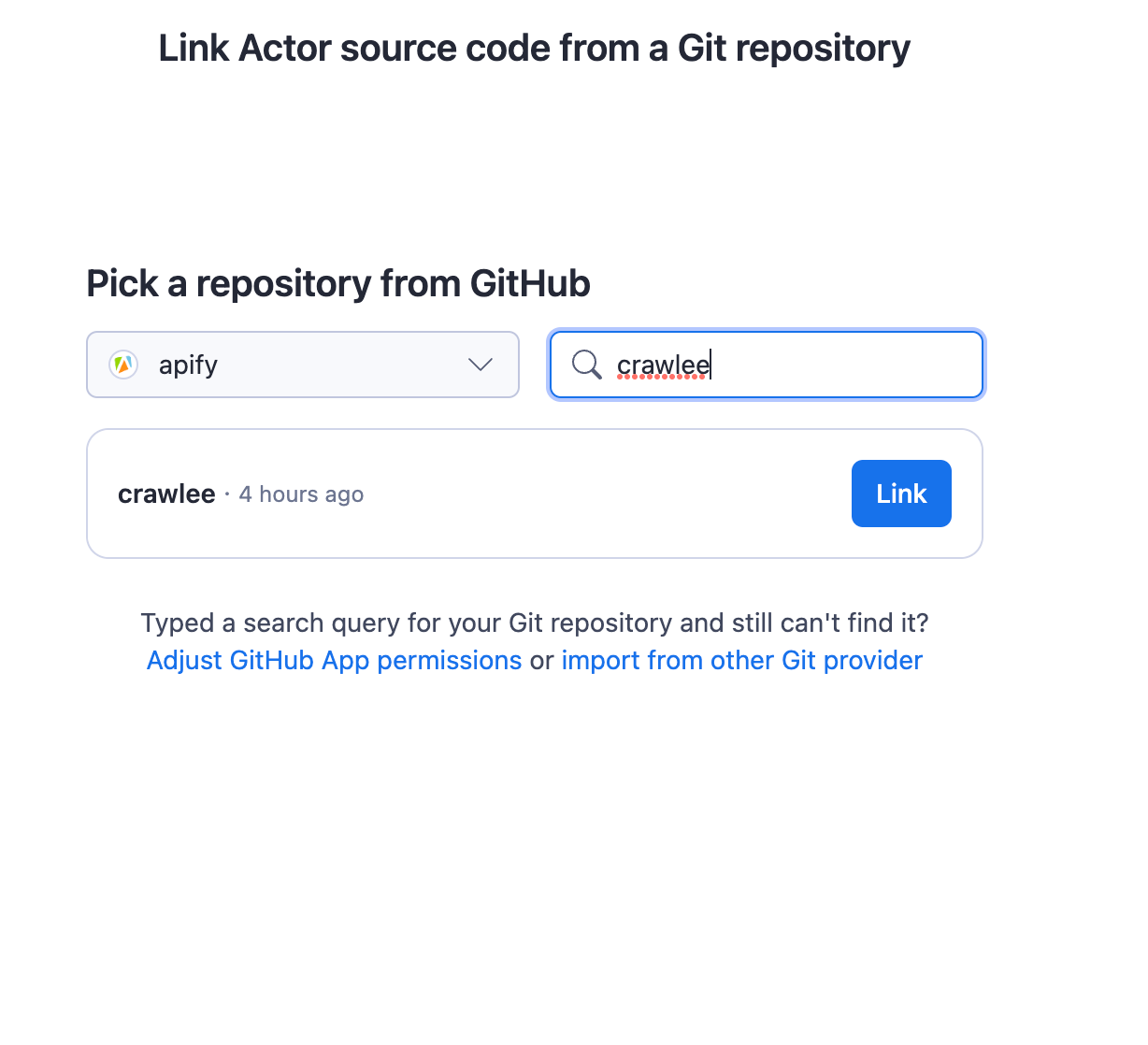
Apify creates the Actor as soon as you select a repository, links its source to the repository, and uses the default branch unless you change it in the Actor's Source settings.
For private repositories, configure a deployment key so Apify can clone the code.
Build automatically on every push
After you link an Actor to a GitHub repository, add a webhook in GitHub to trigger a new build on every push:
-
In Apify Console, open the Actor's API tab and select API Endpoints. Copy the Build Actor endpoint URL. It has this format:
https://api.apify.com/v2/acts/YOUR-ACTOR-NAME/builds?token=YOUR-TOKEN&version=0.0&tag=latest&waitForFinish=60API tokenSelect the correct API token in the dropdown before copying the URL.
-
In the GitHub repository, go to Settings > Webhooks > Add webhook.
-
Paste the URL into Payload URL, set Content type to
application/json, and save.
Every push to the repository now triggers a build of the linked Actor version.
For automated tests and multi-branch workflows (for example, separate latest and beta tags), follow the Continuous integration for Actors guide.
Create a GitHub issue when an Actor run fails
Use an Apify webhook to call the GitHub REST API and open an issue in your repository whenever an Actor run finishes with the FAILED status. This lets you triage failures in the same place you track other work.
Prerequisites
- An Apify Actor you can run.
- A GitHub repository where the issues are created.
- A GitHub fine-grained personal access token with Issues: Read and write permission scoped to the target repository.
Step 1: Generate a GitHub personal access token
- In GitHub, open Settings > Developer settings > Personal access tokens > Fine-grained tokens and click Generate new token.
- Set Repository access to Only select repositories and pick the repository where you want issues to be created.
- Under Repository permissions, set Issues to Read and write.
- Generate the token and copy it. You'll paste it into the webhook headers in Step 3.
Anyone with this token can create issues in the selected repository. Don't commit it or share it in screenshots.
Step 2: Add a webhook on the Actor
-
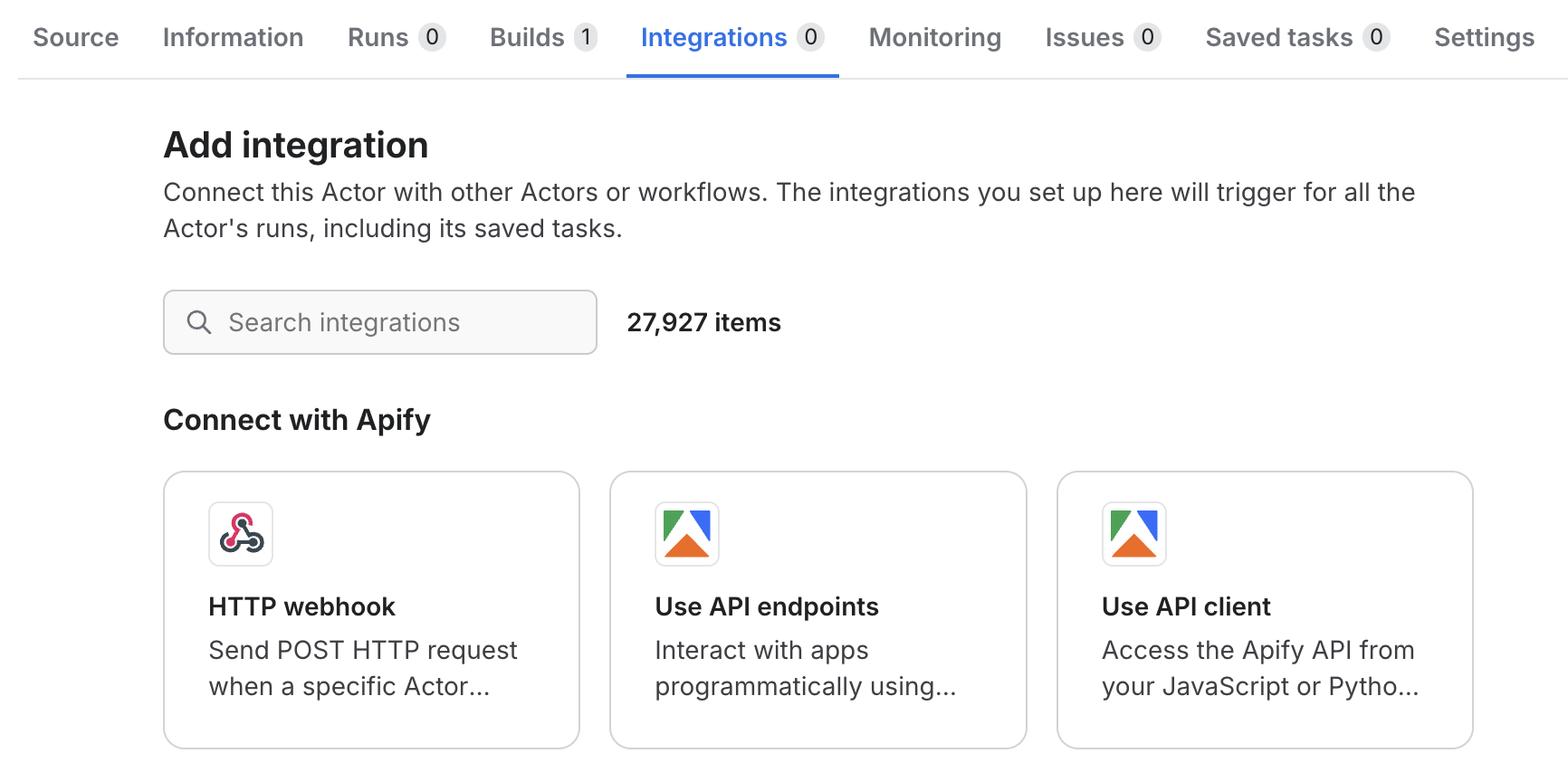
In Apify Console, open the Actor and go to the Integrations tab.
-
Under Connect with Apify, click HTTP webhook.
-
Configure the webhook:
- Event types: select
Run failed(ACTOR.RUN.FAILED). - URL:
https://api.github.com/repos/OWNER/REPO/issues, replacingOWNERandREPOwith your repository details.
- Event types: select
Step 3: Set the headers and payload
In the same webhook form, configure the request that GitHub expects.
Set Headers template to authenticate with the personal access token and tell GitHub which API version to use:
{
    "Authorization": "Bearer YOUR_GITHUB_TOKEN",
    "Accept": "application/vnd.github+json",
    "X-GitHub-Api-Version": "2022-11-28"
}
Enable Interpolate variables in string fields, then set Payload template so the issue title and body include the failed run details:
{
    "title": "Actor run {{resource.id}} failed",
    "body": "Actor [{{resource.actId}}](https://console.apify.com/actors/{{resource.actId}}) finished with status `{{resource.status}}`.\n\nRun: https://console.apify.com/actors/{{resource.actId}}/runs/{{resource.id}}\nStarted: {{resource.startedAt}}\nFinished: {{resource.finishedAt}}\nExit code: {{resource.exitCode}}",
    "labels": ["actor-failure"]
}
For the full list of variables you can use, see Webhook actions.
Step 4: Save and test the webhook
- Click Save to add the webhook.
- Click Test to send a sample payload to the GitHub API. Verify a new issue appears in the repository.
- Trigger a real failure (for example, by aborting a run that's configured to fail or by running the Actor with invalid input) and confirm an issue is created.
If the test fails, check the webhook Dispatches log for the response from GitHub. Common causes are an expired token, missing repository permissions, or a typo in the repository path.
Video walkthrough
Resources
- Source types for Actors - Configure the Git URL, branch, and monorepo paths.
- Continuous integration for Actors - Run tests and trigger builds with GitHub Actions.
- Webhook events and actions - Reference for available events and the payload template.